
AGR Website Login Process Overview
Following is a description of the process for: establishing a password, logging into the Brothers side of the AGR website, and resetting your password. This process is only needed to access the private site of the website.
Establishing an initial Login Password and Logging into the Brothers Side

Step 1 – Open Public Page
In your browser, enter “PlattevilleAGR.com“. It should take you to the public landing page . Linked is a description of the “Public Landing Page“.
You can review the Public page before establishing your new password or go directly to the “Login” menu item.
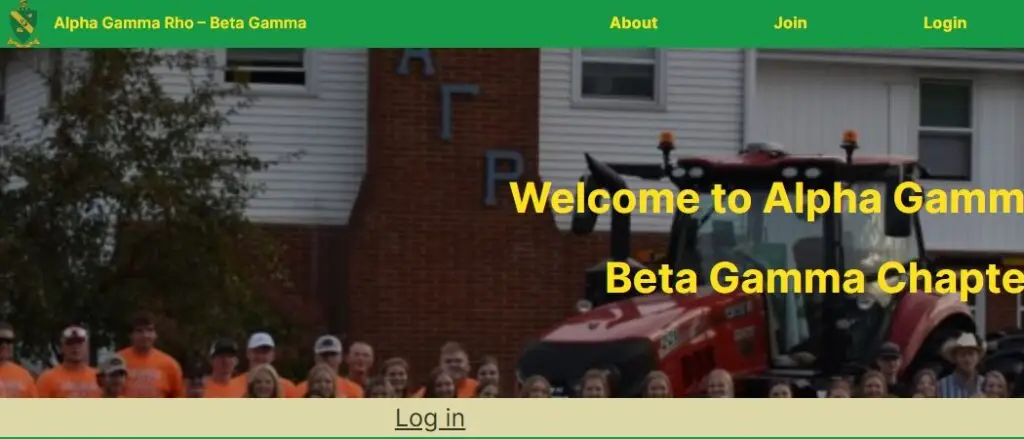
Step 2 – Start the Password Reset Process
From the Public Landing page, click on “Login” from the top menus. After clicking on “Login” you will see “Log in” in the middle of the screen.
Click on “Log in”
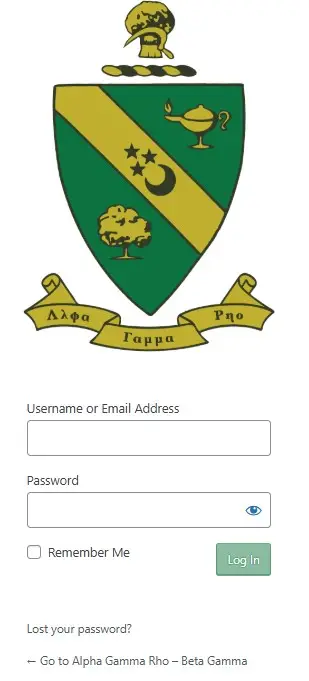
Step 3 – Reset Password by “Lost your password”
The custom login form will now appear, click on “Lost your password“. No need to put in your Username at this point.
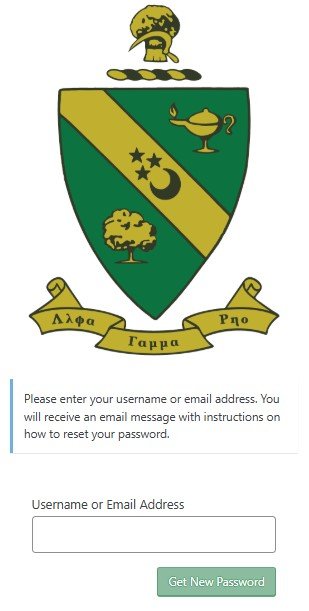
Step 4 – Input Username to get access to reset password
Input your “Username” (which is your First Name, space, Last name – as it is on the Crescent mailing label) to get access to resetting your password.
Click on the “Get New Password” button.
You should next get an email for access to resetting your email.
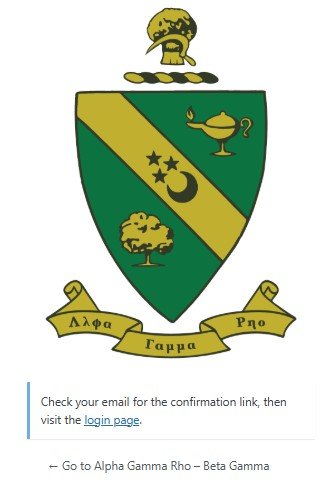
Step 5 – Password Confirmation
The screen capture here indicates that the email was sent.
Next go to your email address to view the password reset link.
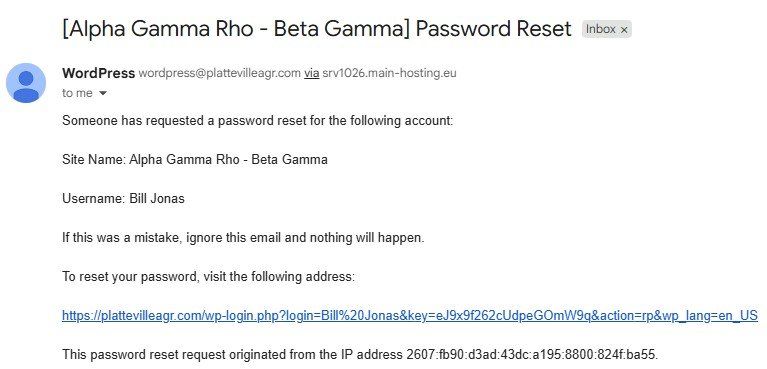
Step 6 – Use Email Link to Reset Password
Click on the blue text link to go to the reset password form.
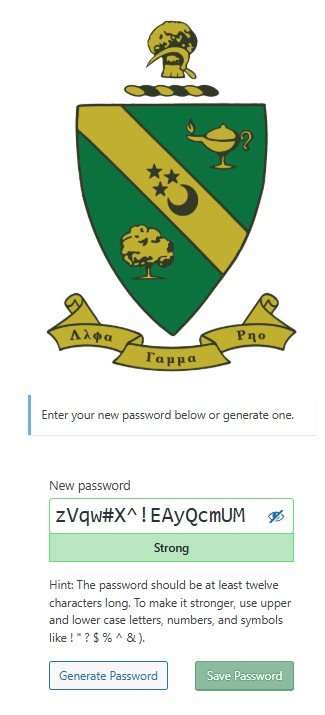
Step 7 – Password Reset Form
Like the new password process you will be presented a form already containing a password that can be changed (to any strength).
Once you have established and typed in the password (or just accept the password on the form), click “Set Password”
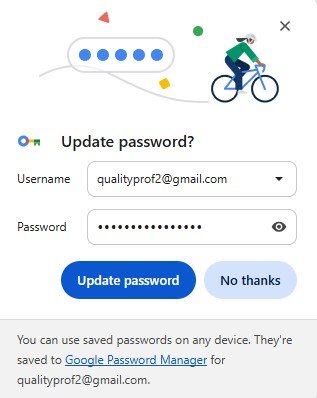
Step 8 – Put Login Password into Your Password Manager
It is certainly recommended you utilize a password manager to retain the password…. Note: different operating systems and/or browsers have different password managers (so this screen capture may not look like yours).
The other alternative would be document the username / password combination another way…
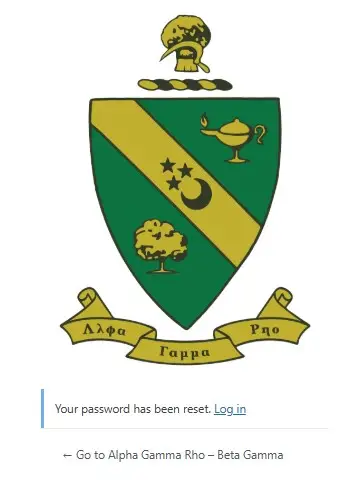
Step 9 – Password Confirmation
At the end of the reset process you should get a reset confirmation email.
The screen capture here indicates that the your password has been reset.
Go back to reopening “PlattevilleAGR.com” by clicking on “Go to Alpha Gamma Rho – Beta Gamma”.
Step 10 – Log into the Public Page
You should now be directed to the public landing page . Linked is a description of the “Public Landing Page“.

Step 11 – Logging into the Brothers Side
Click on “Login” and it will open up the Login form.
Step 12 – Start the Password Reset Process
From the Public Landing page, click on “Login” from the top menus. After clicking on “Login” you will see “Log in” in the middle of the screen.
Click on “Log in”
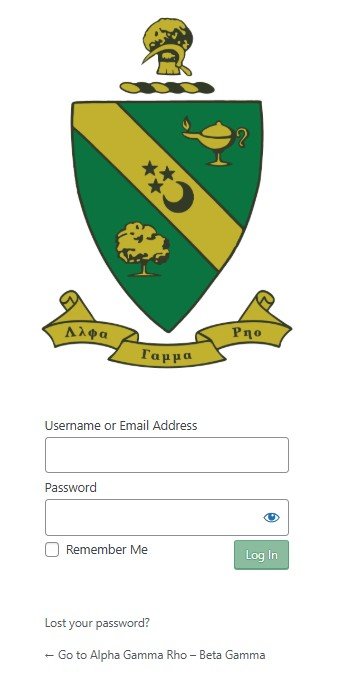
Step 13 – Login
Enter your username in the “User Name or Email Address” field (your First Name, space, Last Name are your username in the website database).
Enter your newly established password. Click “Login” which will open the Brothers Landing Page.

Step 14 – “Brothers” side of the website
You are now in the Brothers side of the website. Following is a link to a description page for AGR Brothers which will provide you with detailed information about all of the menu pages (and sub-pages).
The next discussion topic will be how to reset your password. To start the topic, on main menu locate “My Account”…
Resetting Your Password from the Brothers Side
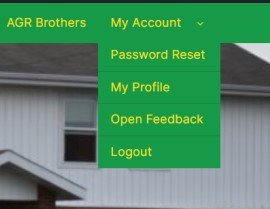
Step 1 – AGR Brothers Page – My Account / Password Reset
From the Brothers menu, click on “Password Reset”
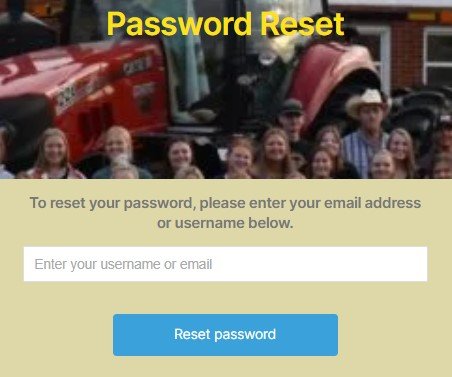
Step 2 – AGR Brothers Page – My Account / Password Reset
Once you have clicked on “Password Reset” the reset form will be presented.
Enter your email address and click “Reset Password”.
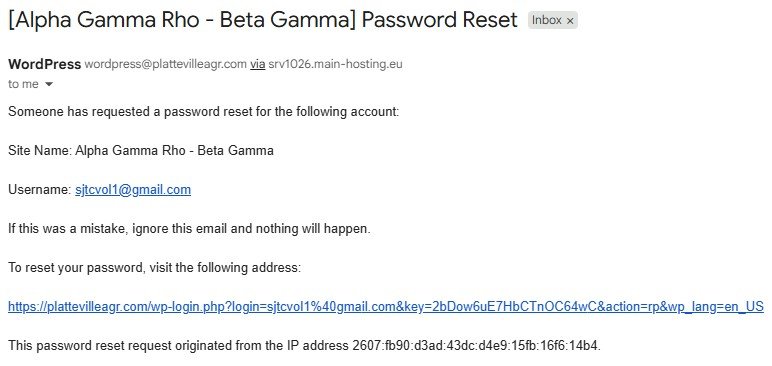
Step 3 – Password Reset Email
Look in your email address inbox (or potentially “Junk” or “Spam” for an email that resembles the screen capture.
Click on the link below the text “To reset your password….”
Step 4 – Password Reset Form
Like the new password process you will be presented a form already containing a password that can be changed (to any strength)
Once you have chosen and typed in the password or just accept the password on the form), click “Set Password”
Step 5 – Put Login Password into Your Password Manager
It is certainly recommended you utilize a password manager to retain the password….
The other alternative would be document the username / password combination another way…
Step 6 – Password Confirmation
At the end of the reset process you should get a reset confirmation email.
The screen capture here indicates that the email was sent.
And although the screen capture here directs you toward the “login page”, go back to the public landing page by clicking on “Go to Alpha Gamma Rho – Beta Gamma”. To access the “Brothers” side through the normal login process.